 dofscroll
 Deutsch
- Free and open source
- Linux · Windows · macOS
Scroll and zoom in any program with your SpaceMouse
dofscroll turns a 3Dconnexion SpaceMouse into a scroll wheel, a zoom control and a set of keys for everyday programs. Every program can have its own settings.
Tested on Linux (RHEL 9). The Windows and macOS builds exist; Windows basics work on one machine, macOS is not verified on a device yet: see status.
What you can do with it
Scroll long pages
Push or tilt the cap to scroll a web page, a PDF or a document. Push harder to go faster.
Zoom with a twist
Twist the cap to zoom in a map or a photo. Or push to zoom: a joystick mode for that is built in.
Switch browser tabs
In the Tabs joystick mode, push or tilt sideways to go to the next or previous tab.
Move through slides
In the Slides joystick mode, push the cap to send Page Up and Page Down.
Scrub a video timeline
In the Timeline joystick mode, push sideways to step with the Left and Right keys.
A profile per program
Smooth scrolling in the browser, timeline stepping in the video editor. dofscroll switches by itself.
How it feels
Browser
Long pages glide by.
PDF
Page through documents.
Map
Twist the cap to zoom.
Your SpaceMouse, beyond 3D
Without: the cap does nothing in your browser. With dofscroll: it scrolls and zooms.
Scroll and zoom everywhere
Browsers, PDFs, documents and maps: push to scroll, twist to zoom.
A profile per program
Smooth scrolling in the browser, timeline scrubbing in the video editor. Also per device. Every profile is a file: export it, import another one, or build one from parts of others.
Buttons that do more
Switch modes, hold or toggle one, or send a combination such as Ctrl+0 to reset zoom.
Ready-made modes
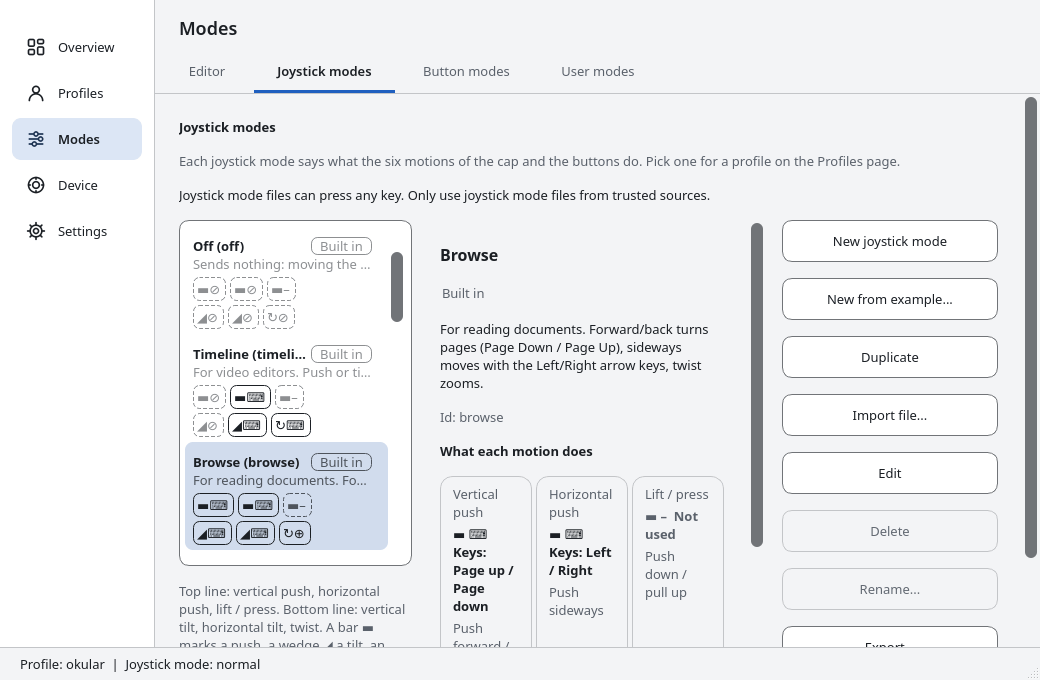
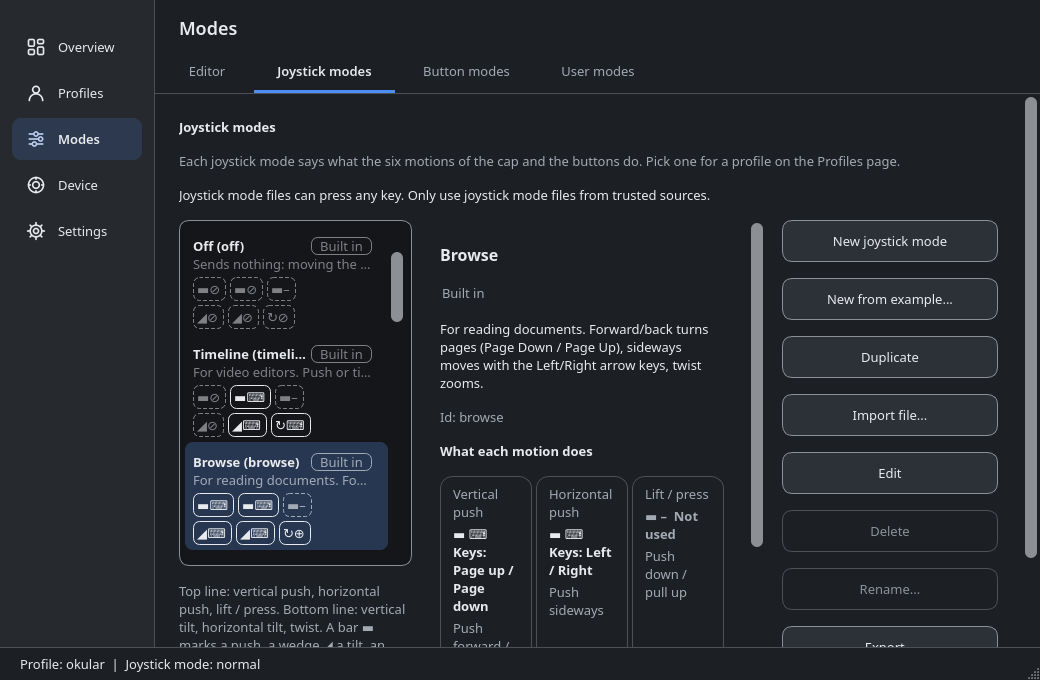
Slides, Media, Map, Browse, Sheet, Photo, Timeline, Precision and more. Each shows at a glance what push, tilt and twist do. Or build your own on a picture of the cap: click a motion and choose what it does.
A key on every motion
Each of the six motions can press a key or a combination: analog, repeating faster the further you push, or digital, once per push. It can also click the mouse or hold a button while you push. You pick the keys in a list in columns.
Macros and your own functions
Record a short series of keys, or write it, and run it with one push or one button. New function in the list of a motion or button composes a key, a click, a hold, scroll or zoom, the pointer or a macro, in words and with check boxes.
Move the pointer
A motion can move the mouse pointer. Together with a click or a hold on a button, a tilt becomes a small mouse. The tiles Switch tabs, Volume and Change track are ready to pick.
Clean input next to the driver
Windows: if the official driver also scrolls in a program, every movement arrives twice. The cleanup lists those programs; you tick the ones to switch off (not your CAD programs). Every file is saved first.
Download
Linux
Fedora, RHEL, Debian, Ubuntu
.rpmor.deb: open it with your package manager.Windows
Windows 10 and 11
Run the.exesetup. SmartScreen warns first: click More info, then Run anyway.macOS
Apple silicon
Open the DMG, drag the app to Applications. First start: right-click, then Open.
Tested on RHEL 9 with SpaceMouse Pro and Compact. On Windows the basic functions work (first tests on one machine); the macOS build comes from CI and has not been run on a device yet. A contributor reports that 1.2.3 starts and shows its window on Ubuntu 26.04 (GNOME, Wayland, SpaceMouse Compact); not tested by the maintainer: tell us how it goes.
Check the download
Download SHA256SUMS.txt too and run:
sha256sum -c --ignore-missing SHA256SUMS.txtSupported systems: Requirements.
How it works
Install
Get the package from the download section.
Open dofScroll
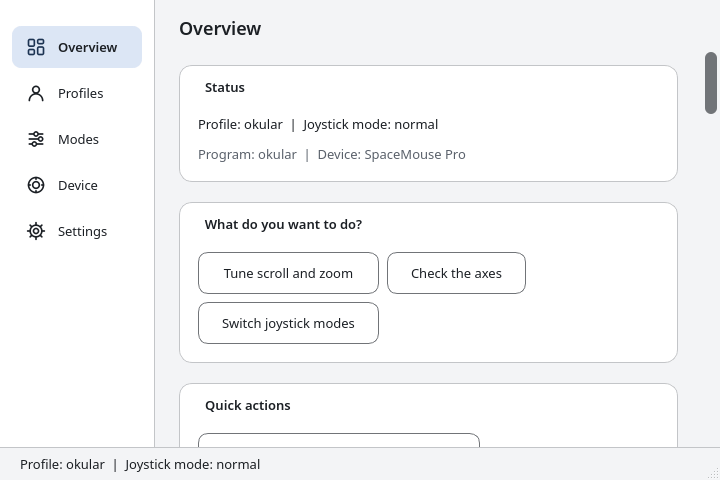
Open it from the start menu, the application launcher or the Applications folder. It starts by itself and a short guide checks that everything works and changes nothing until you press Finish. No terminal.
Scroll
Connect your SpaceMouse. Push the cap to scroll, twist it to zoom.
Linux without a desktop
The first start is just opening the program. Only on a machine without a desktop, or for the TGZ archive, use the commands:
# Fedora, RHEL family (RHEL, Rocky, Alma: first sudo dnf install epel-release, for spacenavd)
sudo dnf install ./dofscroll-*.rpm
# Debian, Ubuntu
sudo apt install ./dofscroll_*.deb
# then, on every distribution
sudo systemctl enable --now spacenavd
systemctl --user enable --now dofscroll.service dofscroll-ui.service
Nothing happens? See Troubleshooting. More: installation guide, Quick start.
Questions
Does it work in Firefox or Chrome?
Yes. dofscroll sends ordinary scroll and zoom events, so browsers, PDF readers and maps work.
It scrolls the wrong way. Can I reverse it?
Yes, for every motion on its own: push and tilt are separate, so you can reverse only the one that feels wrong. Set it per program or per device if you like. The zoom key can differ per program too (for example Cmd on a Mac).
Is it tested?
Tested extensively only on RHEL 9 (X11, KDE Plasma, SpaceMouse Pro and Compact). Other Linux distributions were install-tested in CI containers; a contributor reports that 1.2.3 starts and shows its window on Ubuntu 26.04 (GNOME, Wayland, SpaceMouse Compact), not tested by the maintainer. On Windows the basic functions work on one real machine (first tests); the macOS build comes from CI and has never been run with a real device.
Does it work on Wayland?
There is a uinput backend. The maintainer has not tested it (a contributor reports that it starts on Ubuntu 26.04, GNOME), it needs an opt-in udev rule for /dev/uinput, and per-program profiles work only with kdotool on KDE.
Do I need the 3Dconnexion driver?
No. On Linux dofscroll uses the open-source spacenavd. On Windows and macOS dofscroll reads the SpaceMouse through the installed driver’s programming interface when the driver is installed, and directly otherwise (setting INPUT, default automatic; the interface shows which one is active). dofscroll contains nothing of the driver: it only loads the installed driver’s interface when it runs. The driver, its interface and the names 3Dconnexion and SpaceMouse belong to 3Dconnexion (a Logitech company); no permission was requested from them. This has only been tested against a fake driver, never against the real one.
Can I keep the official 3Dconnexion driver installed?
Yes, and you should if your CAD programs need it: you do not need the driver for dofscroll, and dofscroll is designed to run next to it. Whether both really read the SpaceMouse at the same time on Windows and macOS is still being tested and has not been verified on real machines. A short guided test (about 5 minutes, it changes nothing and never stops the driver) finds out and writes one file for the issue tracker: see the troubleshooting guide. Community reports are unconfirmed.
Everything scrolls twice with the driver installed. What now?
The driver has an axis switched on for that program. On Windows: Settings, General, Remove driver axis settings. Tick the programs to clean up and leave your CAD programs. Every file is saved first.
Can a motion press keys or click the mouse?
Yes. Each motion (push, tilt, twist and lift, both directions) can press a key or a combination per direction, in a profile or in a joystick mode. Analog keys repeat faster the further you push, digital keys press once per push. A motion can also click the mouse or hold a key or a button while you push. This was developed without a SpaceMouse at hand and has not been tested on a device yet.
Can I record a macro?
Yes. Open New function in the list of a motion or button, choose Macro and press Record: it records the keys you press inside that window (never in other programs), with or without the times between them. Every step can be changed afterwards. A macro runs once per push or button press, and everything it holds is released when it ends. A macro presses keys into the window that has the focus, so read one you get from somebody else, and note that a running macro keeps going if you switch to another program. Macros have not been tried on a device yet.
How do I share a profile?
Every profile is a file. Export it on the Profiles page and copy it to the other computer, or import one there: the import checks the file completely and asks before it accepts anything that could do harm. The question lists the risky keys, clicks and macros it found. Imported profiles are applied first, so your own profiles win.
Which models work?
Tested: SpaceMouse Pro and Compact. Known but untested: Wireless, Pro Wireless, Enterprise, SpaceNavigator.
Will it disturb Blender or my CAD program?
Programs that read the SpaceMouse themselves would get the input twice. Switch dofscroll off for them with a program profile (ENABLED = 0).
Is it free?
Yes, GPL-3.0-or-later, no ads, no tracking, no cookies. It is an independent project, not affiliated with or endorsed by 3Dconnexion.